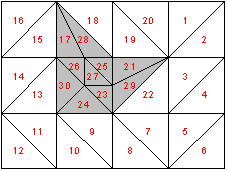
Mesh elements can be selected for refinement using the following menu item.
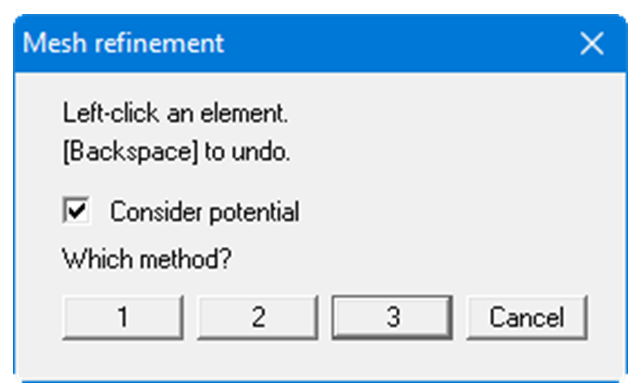
Upon activating the "Potential to be considered" check box, new nodes located immediately between two nodes with potential boundary conditions will be assigned the average of the two values. This procedure is not unequivocal when applied to source boundary conditions and can lead to misunderstandings. Source boundary conditions are therefore not refined in the course of mesh refinement.
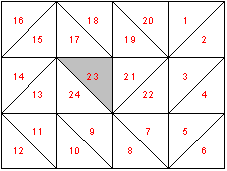
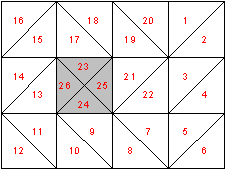
Three different refinement methods can be applied for element refinement. Refinement will be demonstrated on the following mesh using element 23 as an example.
-
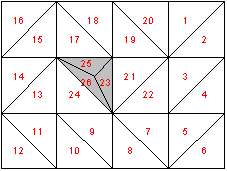
"Method 1"
An additional node is generated in the centroid of the selected triangle.
-
"Method 2"
The selected triangle element and the neighbouring triangle element are halved.
-
"Method 3"
A new triangle element is inserted at the median of the clicked triangle element. The neighbouring triangle elements are halved.