Files do not open on double-click
After an update to a new major version of a GGU program (e.g. from version 6 to version 7), your project files may no longer open on double-click in Windows Explorer, e.g. files with the extension .dct for GGU-DENSITY or .pdr for GGU-PLATELOAD. The program itself, however, works.
The cause is usually an entry in the Windows registry of your user account that still points to the old version of the program. This entry is created by Windows itself, not by the GGU setup. Reinstalling the program therefore does not change it.
How to recognise the problem
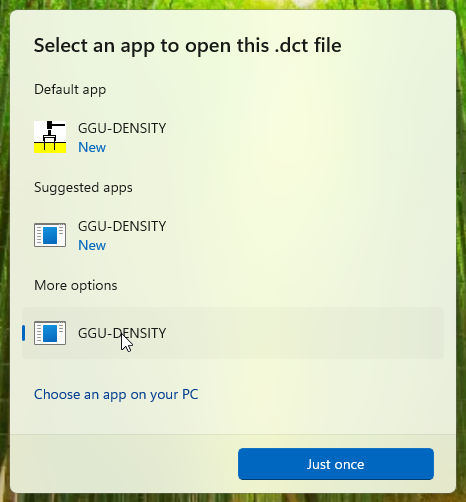
- Windows shows a selection of apps to open the file with, and the GGU program appears in it several times, some of them with a generic icon instead of the program icon. If the selection does not appear on its own when you double-click, you can reach it by right-clicking the file and choosing Open with > Choose another app.
- Select one of the entries with the generic icon (blue and white window) and click Just once: the program does not start. If it does start, there is probably a different cause. In that case, please contact our support.
- Started from the Start menu or the desktop shortcut, the program runs normally, and the file can be loaded via the File menu.
Check first
- Is the program installed only once? Open the Windows settings (Windows key + I) and go to Apps > Installed apps. Type
GGUinto the search field at the top. The affected program must appear in the list exactly once. -
Is there only one program folder without a version number for the program? Open Explorer (Windows key + E). Copy the following path (move the mouse over the box and click the icon that appears in its top right corner), click into the address bar at the top of Explorer, paste the path with Ctrl + V and press Enter.
C:\Program Files (x86)\GGU-SoftwareSome GGU programs are located in the following folder instead. If Windows reports that the first folder cannot be found, or the program is missing from it, look here:
C:\Program Files\GGU-SoftwareThis is where the folders of all GGU programs are located. For the affected program there must be only one folder, e.g.
GGU-DENSITY, and no additional one with the version number in its name, e.g.GGU-DENSITY_6. 3. Does the program start from the Start menu?
If any of the three answers is "No", there is a different problem. Please do not continue, but contact your administrator or our support (see below).
Removing the outdated entry in the Registry Editor
Take care when changing the registry
Incorrect changes to the Windows registry can affect other programs or Windows itself. Back up every folder before deleting it, and delete only the ones described here. If you are unsure, please contact your administrator or our support.
The Registry Editor shows a tree view of yellow folders on the left. Windows calls these folders keys and the lines in the right-hand pane values. No program is deleted in the process, only a note Windows keeps on which program version to open your project files with.
- Close the GGU program.
-
Press the Windows key (the key with the Windows logo) and R at the same time, enter
regeditand click OK.If the Registry Editor opens without asking, that is fine. If Windows only asks whether you want to allow this app to make changes to your device, click Yes. If, however, Windows asks for a user name and password, especially those of a different account (e.g. a central administrator account), cancel: otherwise you would be editing the registry of that other account, not your own. In this case, please contact your administrator.
-
Copy the following path as above (move the mouse over the box, click the icon in its top right corner). In the Registry Editor, click into the address bar directly below the menu bar (it shows e.g.
Computer), select the entire text with Ctrl + A, paste the path with Ctrl + V (it replaces the selected text) and press Enter.Computer\HKEY_CURRENT_USER\Software\Classes\Applications -
The
Applicationsfolder is now selected on the left. Expand it with the small arrow in front of it. The subfolders are sorted alphabetically. Look for folders whose names start with the name of the GGU program, e.g.GGU-DENSITY.exe. Whether such a folder is outdated cannot be seen from its name, only from its content (step 5). If there is no such folder, this cause does not apply. If there are several, go through steps 5 to 7 for each one separately. -
Below the program's folder, expand shell and open one after the other and click command. If one of these subfolders is missing, leave the folder as it is and check the next one.
On the right, double-click the value (Default). The field Value data shows which program version Windows starts. The text is highlighted in blue, which is normal, as is a
"%1"at the end. Only read it (the Home and End keys show its beginning and end), do not change anything, and close the window with Cancel.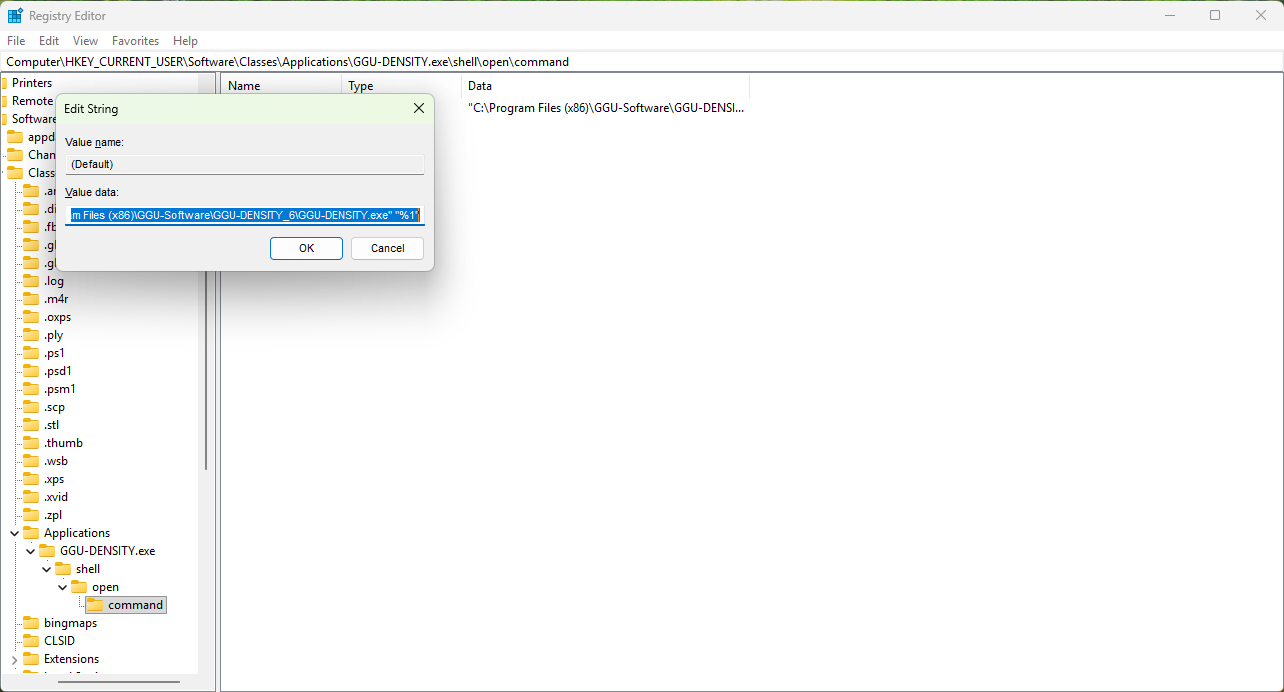
What matters is this path, not the name of the yellow folder on the left:
- Path with an underscore and version number directly after the program name, e.g.
...\GGU-DENSITY_6\GGU-DENSITY.exe: the yellow folder on the left is outdated. It points to a program folder that no longer exists on your hard disk (see "Check first"). Continue with step 6. - Path without a version number, e.g.
...\GGU-DENSITY\GGU-DENSITY.exe: the yellow folder is fine. Leave it as it is and check the next one from step 4.
If you have checked all folders from step 4 and none of them was outdated, please contact our support.
- Path with an underscore and version number directly after the program name, e.g.
-
In the left-hand pane, click the folder with the program name that you have just checked (in the example GGU-DENSITY.exe). It is three levels above
command, directly aboveshell. The address bar must now show...\Applications\followed by this folder name. Back up the folder via File > Export: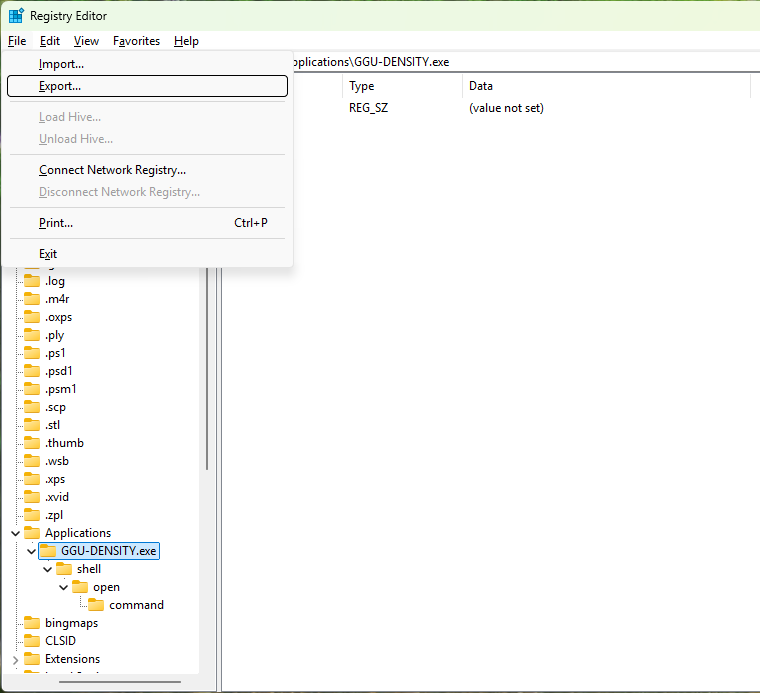
- Under Export range, Selected branch must be chosen, and the field below it must end with the folder name (in the example
GGU-DENSITY.exe).
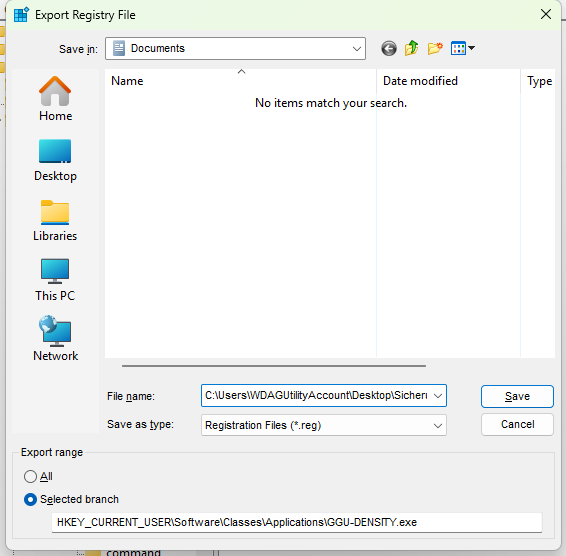
- Select Desktop on the left, enter e.g.
Backup GGU-DENSITYas the file name and click Save. If there are several folders, use a separate file name for each. - The Registry Editor does not confirm the save. Press Windows key + D to see the desktop. The file
Backup GGU-DENSITYmust now be there. Do not close the Registry Editor. Press Windows key + D again and it reappears. If that does not work, click its icon (blue cubes) in the taskbar at the bottom. Only then continue with step 7. - Do not open this backup file "just to check". Double-clicking it restores the old entry, and with it the problem. When and how you need it is described below under "Restoring the backup".
- Under Export range, Selected branch must be chosen, and the field below it must end with the folder name (in the example
-
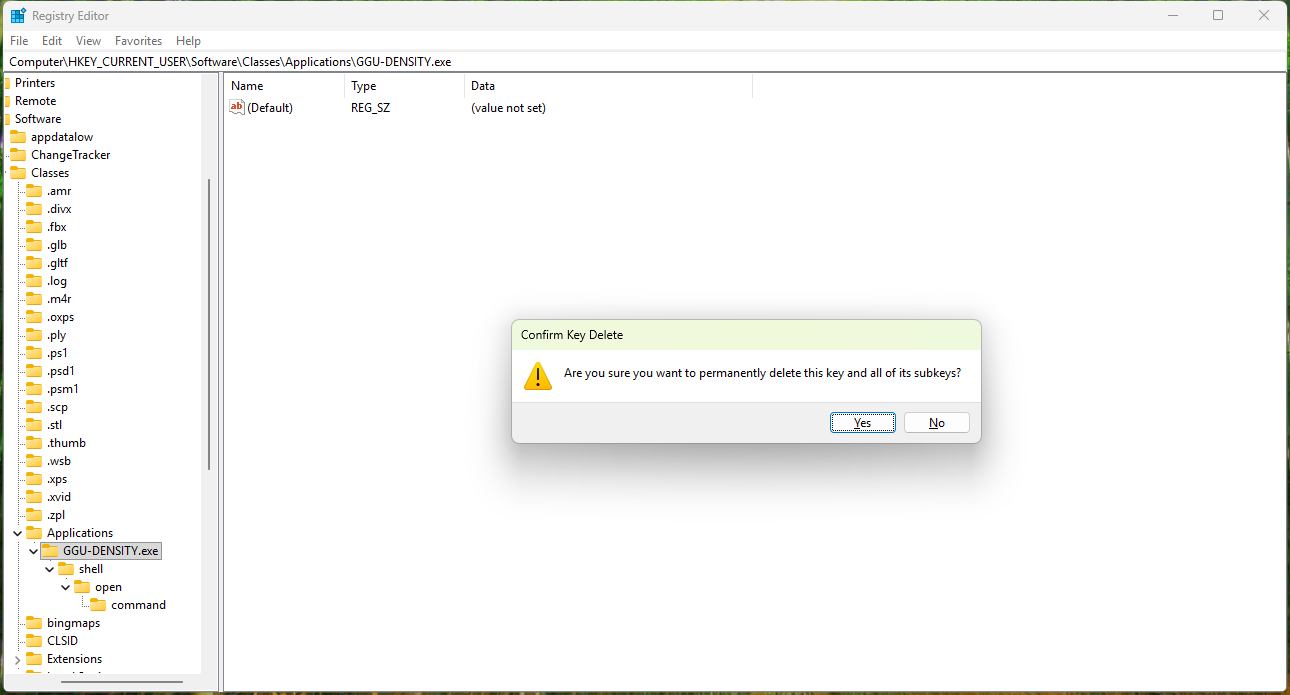
Click the same folder on the left once more (in the example GGU-DENSITY.exe) and check that the address bar again ends with this folder name. Then press the Del key, or right-click the folder and choose Delete. Windows asks whether you want to permanently delete the key and all of its subkeys. Confirm with Yes. The folder then disappears from the list on the left. If Windows instead asks about deleting a value, or the address bar does not end with the folder name, click No and start this step again.
-
Close the Registry Editor. Save any open work, sign out of Windows (Start menu, your name, Sign out) and sign in again.
-
In Explorer, double-click one of your project files (e.g. a file with the extension
.dct), not the program itself. If it worked, the file opens in the GGU program. If Windows asks for the app again, the GGU program now appears only once. Click it and then Always. If Windows only offers Just once, click that. The next time you double-click, the file should open directly. If Windows asks for the app again then, please contact our support.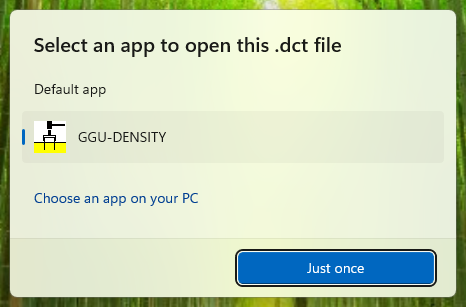
Restoring the backup
You only need the backup from step 6 if something else stops working after the deletion or if our support asks you to restore it. Please note: the backup also brings back the outdated entry, and with it the original problem.
- On the desktop, double-click the backup file (e.g.
Backup GGU-DENSITY). - Windows asks whether the Registry Editor may make changes and warns that adding information to the registry can change values. Confirm both questions with Yes. If a user name and password of a different account are requested, the same applies as in step 2: cancel.
- Windows reports that the keys and values were successfully added. Click OK.
- Sign out of Windows and sign in again.
Alternatively, you can load the file in the Registry Editor via File > Import.
If this does not help
If the file still does not open on double-click, please contact our support by email at support@ggu-software.com or by phone at +49 (0) 5492-6099996 (selection 2). Please state the affected program and the installed version and describe what happens when you double-click. A screenshot of the app selection helps us.