GGU-FIELDCAPACITY: Program settings
Menu Edit / Settings.
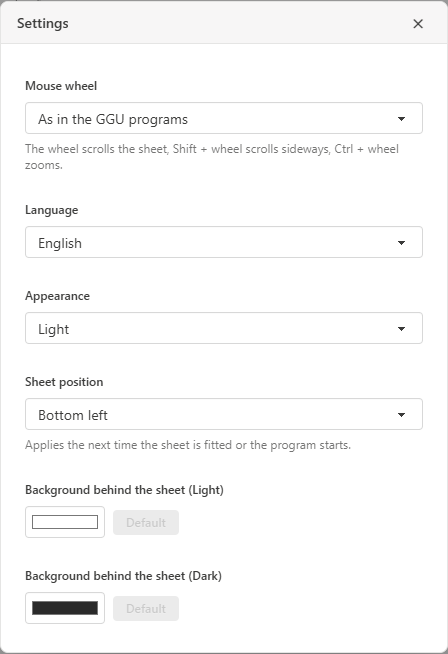
Unlike the other dialogs, this one has no OK button: every change applies immediately. The settings apply to your installation, not to a project; they are not saved in the project file.
Mouse wheel
| Option | Effect |
|---|---|
| As in the GGU programs (default) | The wheel moves the sheet up and down, Shift + wheel left and right, Ctrl + wheel zooms in and out. |
| Modern (touchpad-friendly) | The wheel zooms in and out. On a touchpad, two fingers move the sheet, and spreading or pinching zooms. |
Language
System (default) uses the Windows language if it is German or English, otherwise German. German or English fixes the language. The interface and the evaluation sheet switch immediately.
Appearance
The Appearance setting determines whether the program is shown in light or dark colours:
| Option | Effect |
|---|---|
| System | The program follows the Windows colour mode. If you switch Windows while working, the program follows immediately. This is the default. |
| Light | Always light, regardless of Windows. |
| Dark | Always dark, regardless of Windows. |
You set the Windows colour mode under Settings / Personalisation / Colours, at Choose your mode.
In the dark appearance, menus, dialogs and the drawing area are shown dark, including the sheet on screen. This is easier on the eyes in low ambient light. Exported PDF files are not affected: they are always produced light, black on white, as they should appear in a report.
The appearance is a setting of your installation. It is not saved in project files; a file you pass on to colleagues opens in their own appearance.
Sheet position
Sets where the sheet lies in the window after fitting:
- Bottom left (default), as in the other GGU programs,
- Centred.
A change does not move the sheet immediately. It applies from the next View / Fit sheet (Home or F9), from View / Actual size (100 %), from a double click next to the sheet, or from the next program start.
Background behind the sheet
The area around the sheet has its own colour for each appearance:
- Background behind the sheet (Light): default white.
- Background behind the sheet (Dark): the default is the background colour of the dark appearance.
Clicking the colour field opens the colour picker. Default restores the default value.