GGU-FIELDCAPACITY: User interface
Start screen
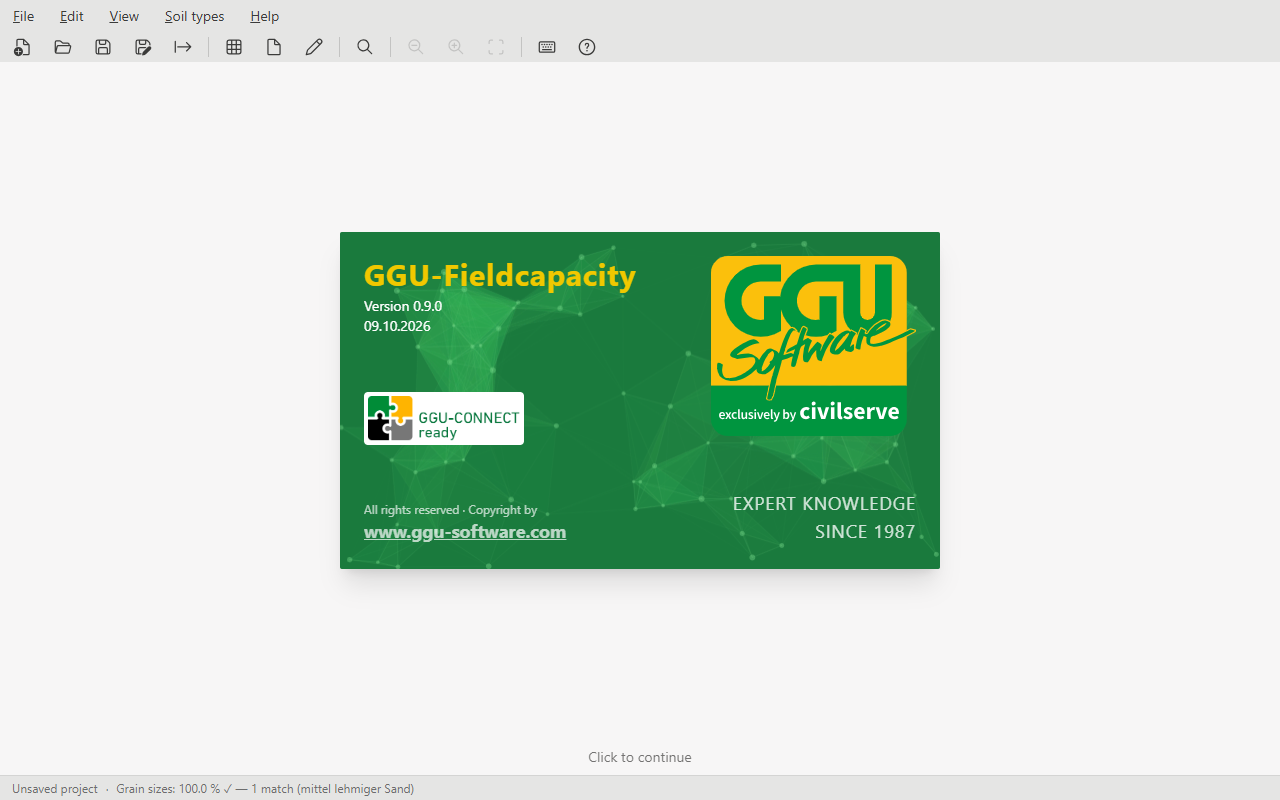
When the program starts, a start screen shows the program version and build date. A mouse click or any key closes it, and the evaluation sheet appears.
Menus
As in the other GGU programs, every menu opens with the Alt key and the underlined letter, for example Alt+E for Edit.
| Menu | Item | Purpose | Key |
|---|---|---|---|
| File | New | Start an empty project | Ctrl+N |
| Open… | Load a project file (.ggufk) | Ctrl+O | |
| Save | Write the project to the current file | Ctrl+S | |
| Save as… | Save the project under a new name | Ctrl+Shift+S | |
| Import data from GGU-CONNECT… | Import samples from GGU-CONNECT | ||
| Export data to GGU-CONNECT | Hand results back to GGU-CONNECT | ||
| Export GGU-CONNECT data as GGUML… | Save the results as a file | ||
| Export as PDF | Output the evaluation sheet as a PDF | Ctrl+P | |
| Print… | Print the evaluation sheet | ||
| Exit | Close the program | ||
| Edit | Samples… | Entering samples | F6 or Ctrl+Shift+E |
| Project… | Project data | Ctrl+Shift+P | |
| Company… | Company header and logo | Ctrl+Shift+F | |
| Evaluation sheet rows… | Choose and order rows | Ctrl+Shift+R | |
| Settings… | Program settings | ||
| View | Zoom in | Enlarge the sheet | + |
| Zoom out | Reduce the sheet | − | |
| Actual size (100 %) | Show the sheet at actual size | 0 | |
| Fit sheet | Fit the whole sheet into the window | Home or F9 | |
| Soil types | KA5 soil types… | Look up soil types according to KA5 | Ctrl+F |
| GGU-CONNECT | the same three commands as in the File menu, see Exchanging data with GGU-CONNECT | ||
| Help | Keyboard shortcuts… | List of all keyboard shortcuts | |
| Check for updates… | Look for a new program version | ||
| About GGU-Fieldcapacity | Program version and build date | F1 |
Toolbar
The toolbar below the menus holds the most frequent commands, from left to right:
- New, Open, Save, Save as, Export as PDF, Print
- Samples, Project, Evaluation sheet rows
- KA5 soil types
- Zoom out, Zoom in, Fit sheet
- Keyboard shortcuts, About GGU-Fieldcapacity
Hovering over a button shows the command and its keyboard shortcut. Company and Settings are only available from the Edit menu.
Status bar
At the bottom left you see the name of the open project file, or "Unsaved project". Next to it the program reports on the sample selected under Edit / Samples:
| Message | Meaning |
|---|---|
| Enter grain sizes | No sample of the project has any input yet. |
| Grain sizes: 60.0 % | Clay, silt or sand is still missing for the selected sample. |
| Grain sizes: 85.0 % (Σ ≠ 100) | Clay, silt, sand and gravel of the selected sample do not add up to 100 %. |
| Grain sizes: 100.0 % ✓ — 1 match (mittel lehmiger Sand) | The total is correct and the soil type according to KA5 has been determined. |
| Generating PDF… | The PDF export is running. |
The soil type is given by its German name from KA5, also in the English interface.
Moving and zooming the evaluation sheet
You can move and zoom the sheet with mouse and keyboard. How the mouse wheel behaves is set under Program settings. With the default "As in the GGU programs":
- Mouse wheel: move the sheet up or down
- Shift + mouse wheel: move the sheet left or right
- Ctrl + mouse wheel: zoom in or out
The view keys work while the mouse pointer is over the drawing area:
- + and −: zoom in and out
- 0: actual size, Home or F9: fit sheet
- Arrow keys: move the sheet
- Page Up / Page Down: move by one page (only with the mouse wheel setting "As in the GGU programs")
- Esc: back to the full view (only with the mouse wheel setting "As in the GGU programs")
A double click next to the sheet also fits it back into the window.
The complete list is under Keyboard shortcuts.
Editing content directly on the sheet
You can also reach the dialogs for a part of the evaluation sheet directly in the drawing area: a double click on an area opens the matching dialog, the right mouse button opens a context menu with the commands for that area. Both run the same commands as the Edit menu.
| Area on the sheet | Double click opens | Context menu offers |
|---|---|---|
| Company field at the top left of the header | Edit / Company | Company |
| Headings and project field | Edit / Project | Project |
| Row labels on the left of the table | Edit / Evaluation sheet rows | Evaluation sheet rows, Samples |
| Column of a sample | Edit / Samples, on this sample | Samples, Evaluation sheet rows |
| Empty space on the sheet or next to it | Fit sheet (only next to the sheet) | Fit sheet, Actual size (100 %), Settings |
A double click or right click on a sample column selects that sample; the status bar then shows its state.
New program version
After startup the program checks in the background whether a newer version exists. If so, the Update Available dialog appears with the changes in the newer versions and the button Download Now. Later closes it until the next start; with Don't ask again until the next available version it does not appear again for this version. In both cases a hint stays on the right of the menu bar.
To check by hand, use Help / Check for updates….